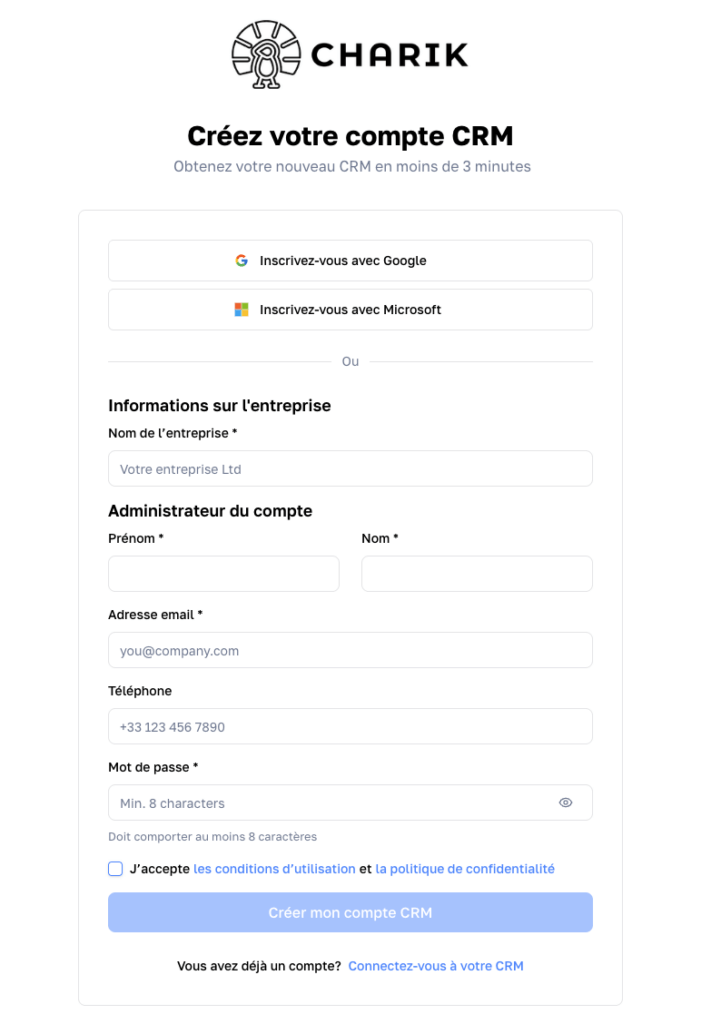
Signup guide
1. Open the signup page
Head over to the account creation page on Charik CRM.
You will land on the “Create your CRM account” screen.
2. Choose your signup method
You have 3 options:
- Sign up with Google: Click “Sign up with Google” if you want to use your Google account.
- Sign up with Microsoft: Click “Sign up with Microsoft” if you want to use your Microsoft account.
- Sign up with the standard form: If you prefer to create your account manually, fill in the fields shown on screen.
3. Fill in the requested information
Complete:
- Company name *
- First name and Last name of the account administrator *
- Email address *
- Phone (optional)
- Password *
Fields marked with an asterisk are required.
4. Create a valid password
Your password must follow these rules:
- contain at least 8 characters
- contain at least one uppercase letter
- contain at least one lowercase letter
- contain at least one digit
- contain between 8 and 20 characters
If the password does not meet these rules, an error message appears below the field.
5. Accept the terms
Tick the box: “I accept the terms of use and the privacy policy”
This step is required in order to create the account.
6. Create the account
Click “Create my CRM account”.
Your Charik CRM account will then be created if all the information is correct.
Special cases
You already have an account
At the bottom of the page, click “Log in to your CRM”.
The email domain already exists
If a message appears such as: “This company email domain already exists. Please join via an invitation.”, it means your company already has a Charik CRM workspace linked to this email domain.
In this case:
- do not create a new account
- ask your company administrator to send you an invitation
Useful tips
Use exclusively your work email address to join the right CRM workspace.
Also check:
- the spelling of your email
- that the password rules are followed
- that the terms box is properly ticked
Quick recap
- Open the Charik CRM signup page
- Choose Google, Microsoft or the standard form
- Fill in the company and administrator information
- Create a compliant password
- Accept the terms
- Click Create my CRM account