Manage your contacts in the CRM
Contact records sit at the heart of your CRM. They let you centralize information about the people you interact with: prospects, customers, partners, or any other relationship that matters to your business.
A well-filled contact record helps you track exchanges more accurately, find information quickly, and work more efficiently as a team.
Create a contact
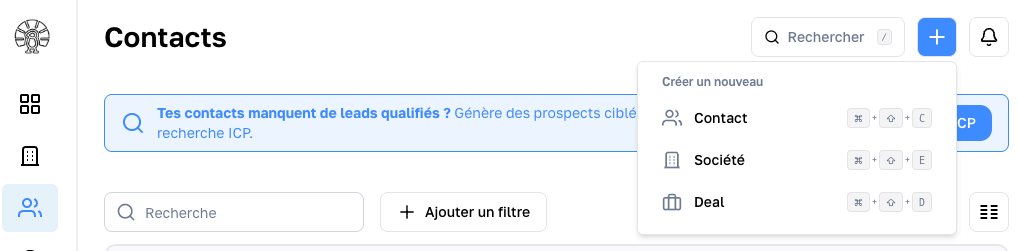
You can create a contact manually at any time from your CRM using the quick action button.
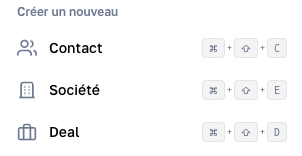
You can also add a contact using the matching keyboard shortcut.
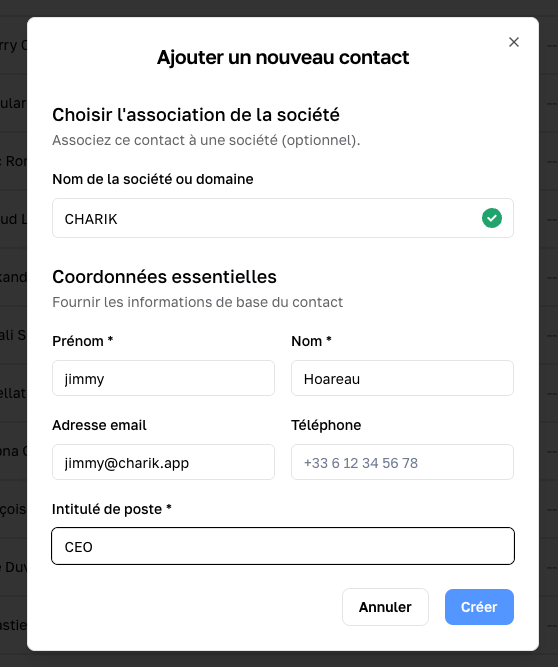
Charik CRM lets you create a contact directly with the essential details:
- first name*
- last name*
- email address
- phone number
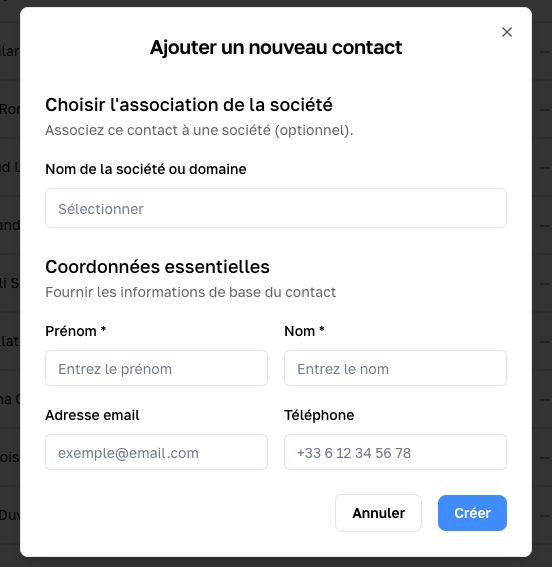
You don’t need to fill in every field right away. Start with the essentials, then complete the record as your exchanges progress.
You can also link the contact to an existing company or create a new one on the fly.
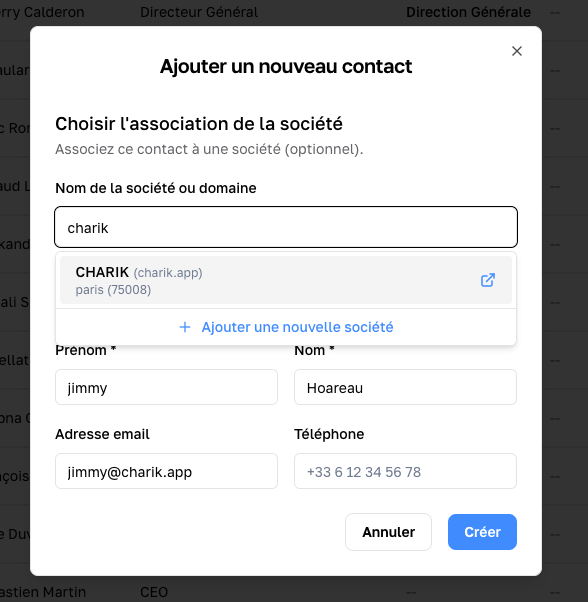
When you add a contact to a company, you will be asked for a “job title”. In Charik, the contact’s job title qualifies their relationship with the company. A single contact can therefore hold several relationships with different companies.
The contact and company are automatically linked to you as the “owner”, meaning the person responsible for the contact.
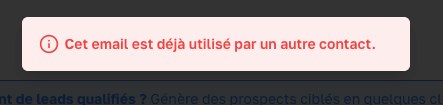
In Charik, only one contact can exist per email address.
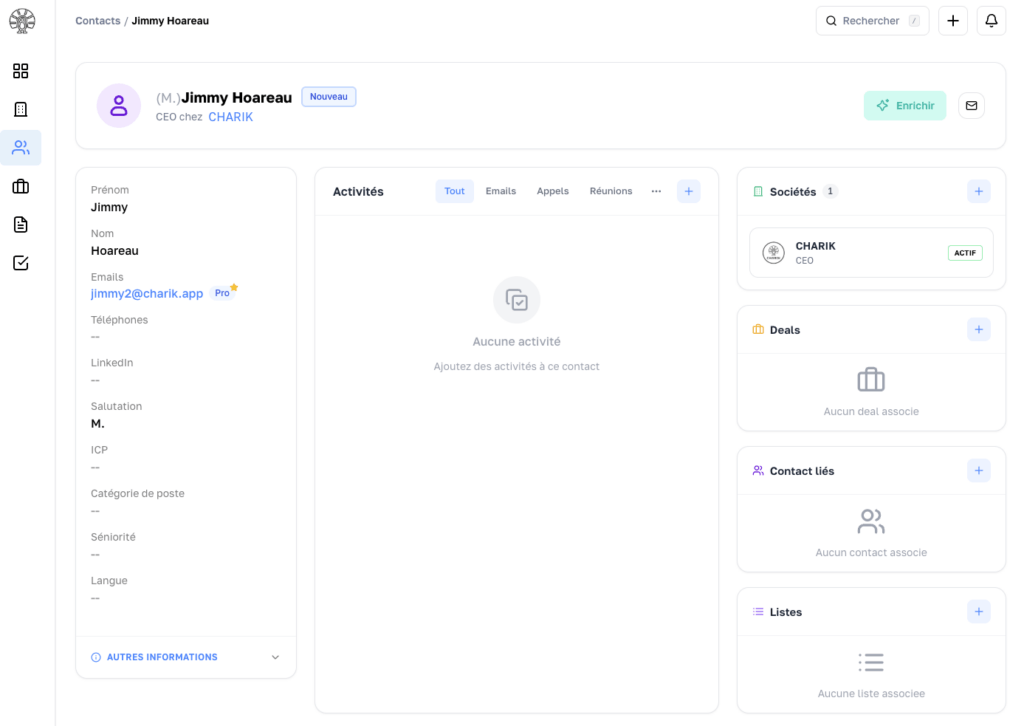
Once the contact is created, you are taken straight to the matching contact record.
Edit a contact record
A contact record changes over time. You can update it whenever you need, so your database stays reliable and easy to use.
For example, you can:
- correct an email address
- add a phone number
- update the person’s job title
- change their sales status
- add any information useful for follow-up
All contact information can be edited from the left-hand column.
Review a contact’s activity
Each contact record does more than store static information. It also gives you the full history of interactions tied to that person.
In the center of the record, you will find:
- notes
- calls
- emails
- tasks
- meetings
This activity feed preserves the context, even when several teammates have handled the same contact over time.
Link a contact to a company, a deal, and more
To capture as much context as possible in B2B, a contact can and should be linked to one or more companies, deals, and sometimes other contacts through reporting lines or family ties.
The right-hand column of the screen lets you:
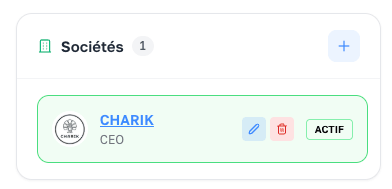
- Add a new association using the “+”
- Qualify the relationship using the pencil icon
- Open a quick view of the linked company or deal by clicking the card
- Jump straight to the linked record by clicking its name
- Remove the relationship by clicking the trash icon
Each relationship can be qualified based on the objects involved.
Search and find a contact
See the Search and filters page.
Enrich a contact (requires Pro or higher)
See the Enrich a contact page.
Avoid duplicates
Duplicates are one of the most common problems in a CRM. They make sales follow-up harder, distort reporting, and hurt your team’s experience.
To prevent them, our CRM uses the email address as a unique identifier.
A clean database is far more valuable than a large but disorganized one.
Best practices
To manage your contacts well, we recommend that you:
- fill in at least the essential fields
- update records regularly
- link contacts to the right company
- log important information after every exchange
- limit duplicate creation
- align practices across the team
Common issues
I have several records for the same person
A duplicate has likely been created. Keep the most complete record and update it with any useful information from the others.
Some information is missing
Not every record is complete from day one. What matters is starting with a reliable minimum, then enriching the data as you go.