Data import lets you quickly add several contacts or companies to the CRM from a file.
Before you start
Before importing your data, make sure your file is clean and structured with a clear header row. Each column must match a specific type of information, for example first name, last name, email, phone or company name. The more consistent your file is, the more reliable the automatic detection will be.
We also recommend splitting your imports by data type. If you are importing contacts, prepare a contact-oriented file. If you are importing companies, prepare a company-oriented file. This avoids confusion when mapping fields.
Accessing data import
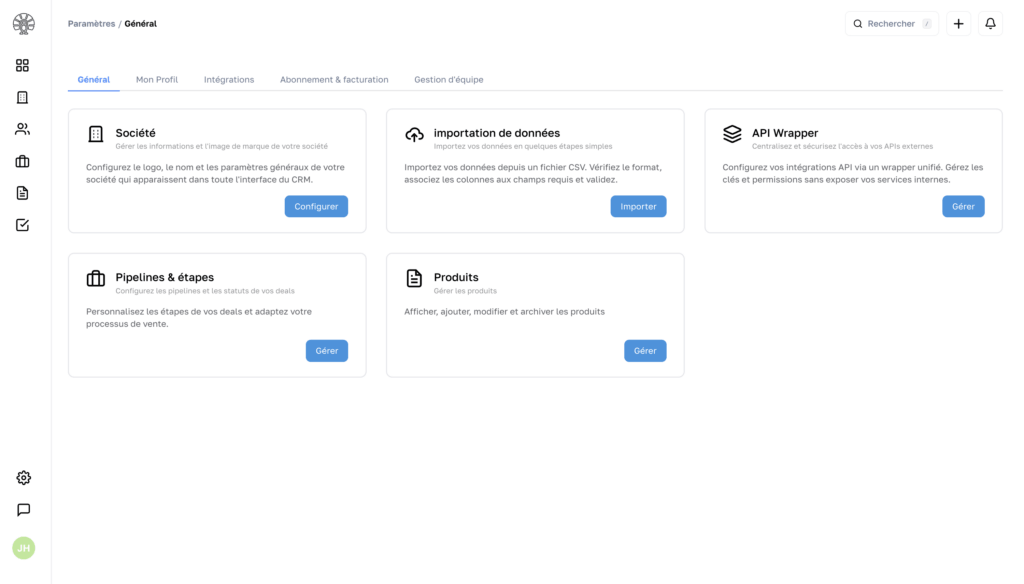
To start an import, open Settings, then go to General. From this page, click Data import.
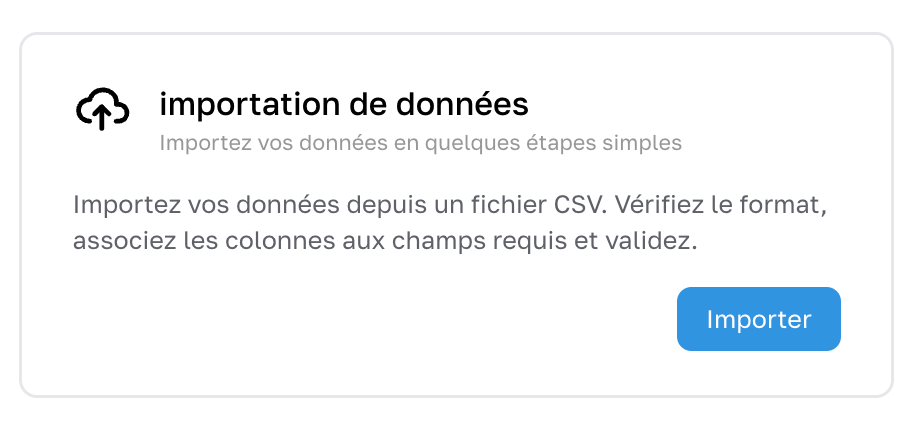
You then land on a screen where you can choose the type of data to import and drop your file.
Choosing the data type to import
Before sending your file, select the relevant data type.
You can choose, for example:
- Company
- Contact
- Deal
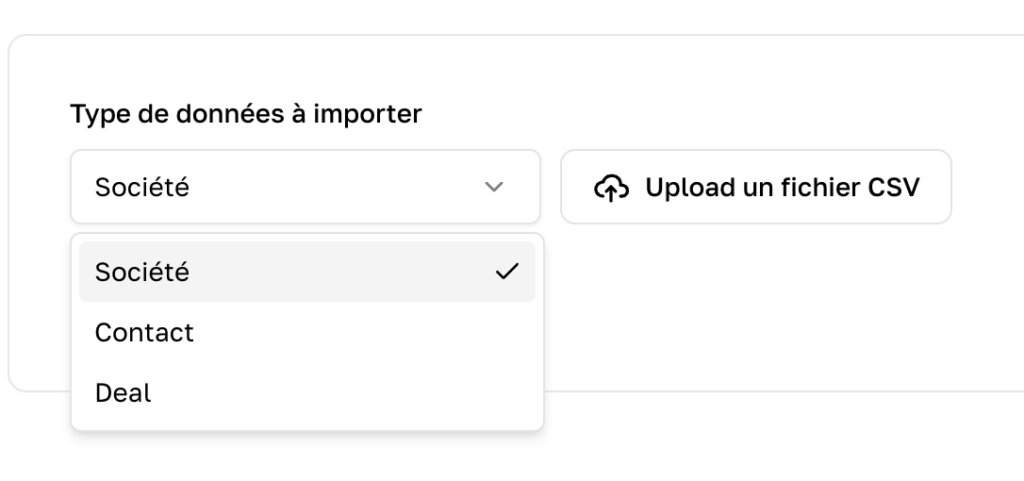
This choice is essential, because it determines the attributes the CRM will then offer you in the field mapping step.
Adding your file
Once the right type is selected, click Upload a CSV file and add your file. After sending it, click Check to move on to the next step.
The CRM then analyses your file, detects the columns present and tries to automatically match each column to an internal attribute.
Checking the field mapping
The Field mapping screen shows three pieces of information for each detected column:
- the name of the column in your file
- a preview of the first row
- the internal attribute currently mapped in the CRM
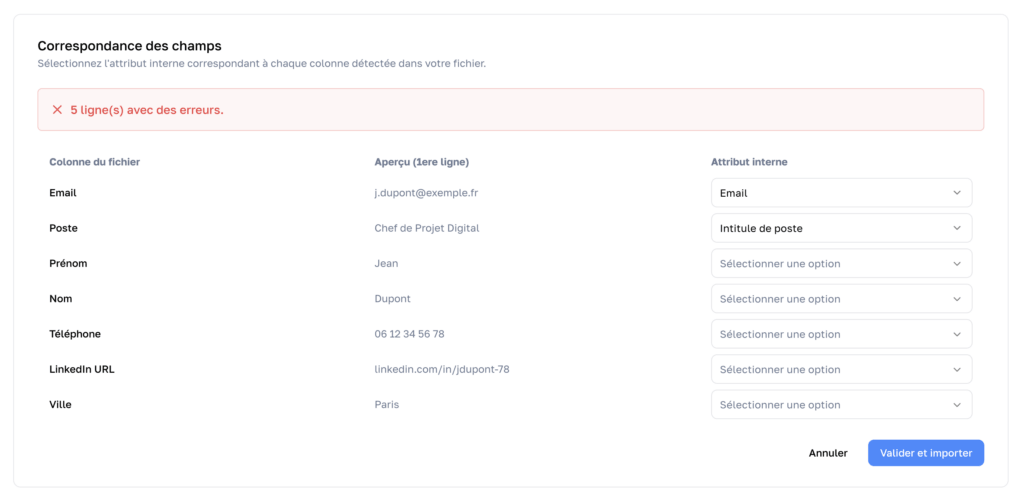
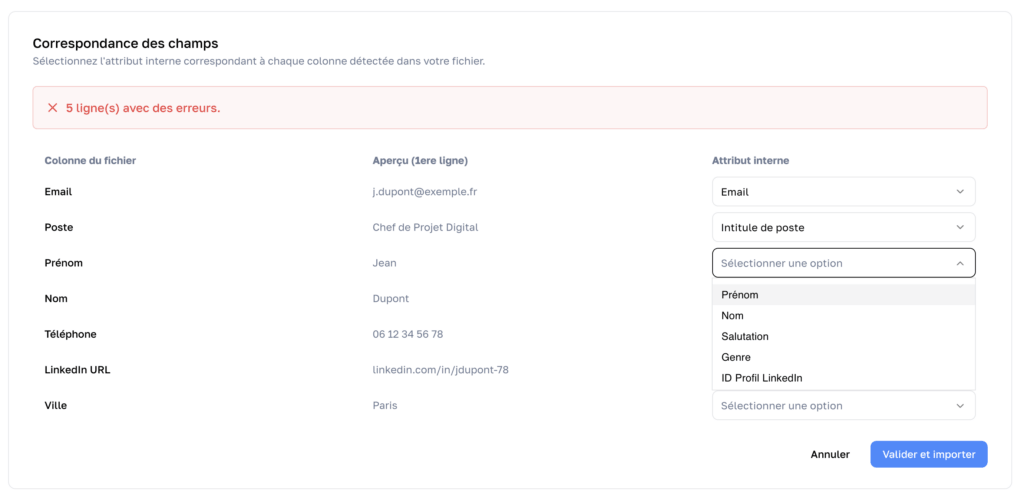
If everything looks right, you can validate the import. Otherwise, you can change the mapping one row at a time using the dropdown menus on the right.
Automatic mapping
The CRM tries to identify the most common column headers on its own. For example, it can automatically recognise:
- First name
- Last name
- Phone
- Job title
- LinkedIn profile ID
- …
This automatic detection speeds up the import, but it is not perfect. If one of your headers is ambiguous, too specific or worded differently, the CRM may ask for manual confirmation.
Columns with errors
If some columns are not correctly mapped, an error message may appear, for example to indicate that several rows or fields still need to be fixed. This usually means that one or more columns do not yet have a valid mapping.
In that case, open the dropdown menu on the relevant row and pick the matching attribute in the CRM. Repeat the operation until every useful column is correctly filled in.
When to leave a column empty
If a piece of data in your file does not exist in the CRM for the type being imported, you should not pick an “approximate” field just to fill in the row. It is better to leave that column with no mapping.
Example: during a contact import, if your file contains a City column, you should leave it empty. In our CRM, the city is not stored on the contact record, because we consider it should be attached to the company. In that case, do not map this column to an unsuitable contact field.
Importing your contacts
To import contacts, select Contact as the data type, then send your file.
The most common fields for a contact import are, for example:
- First name
- Last name
- Phone number
- Job title
- LinkedIn profile ID
Once the file has been analysed, carefully review the mapping. If a column is not automatically recognised, pick the right attribute manually. If a piece of information does not match any contact field in the CRM, leave it empty.
When everything is ready, click Validate and import.
Importing your companies
To import companies, select Company as the data type, then upload your file.
Depending on how your file is structured, you can then link the columns to the available company attributes. Here again, the CRM tries automatic recognition, but you always have the option to fix the mapping before validating.
If your file contains columns that do not exist among the company attributes in your CRM, leave them unmapped rather than assigning them to the wrong field.
Validate and run the import
When every useful column is correctly mapped, click Validate and import. The CRM then starts processing the file.
Depending on the size of the file, this operation can take more or less time. Once the import is complete, a result screen appears.
Reading the import result
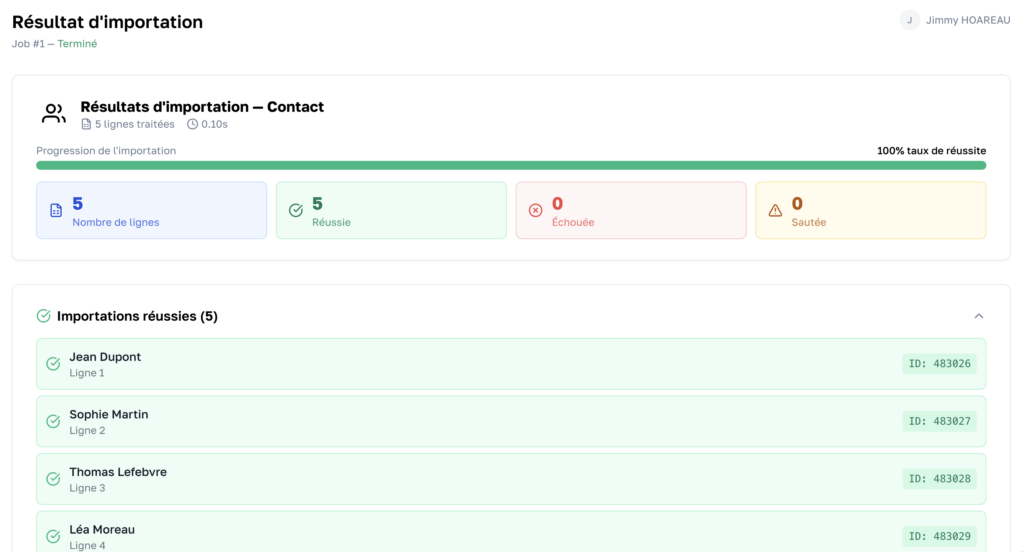
The result page lets you quickly see whether the import went well. You usually find:
- the number of rows processed
- the number of successful rows
- the number of failed rows
- the number of skipped rows
- the overall success rate
If the import is successful, you can also review the details of the records created or processed. This lets you confirm that the data has been taken into account properly.
Best practices
To avoid mistakes and save time, we recommend that you:
- use a clear header row in your file
- prepare one file per data type
- review the automatic mapping before validating
- never force a column onto an unsuitable field
- leave empty any column that has no equivalent in the CRM
- check the final result after the import
Common issues
The CRM shows errors in the field mapping
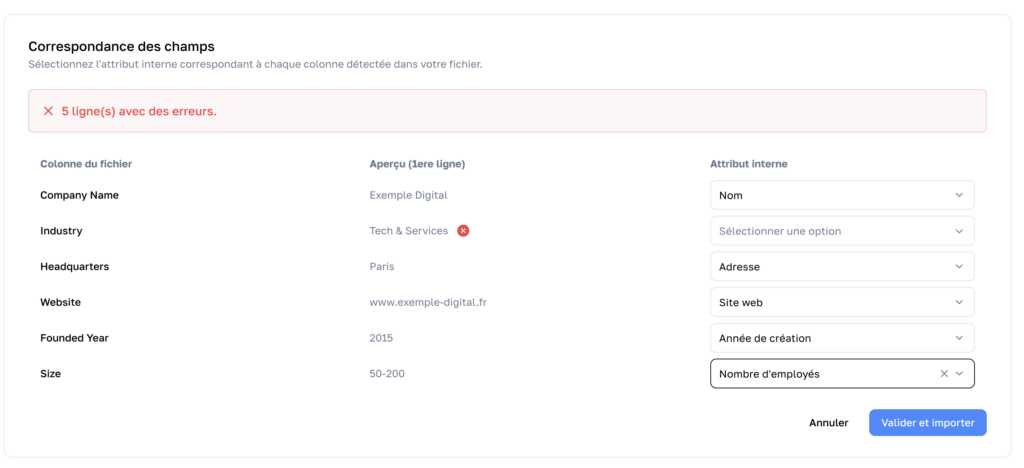
This usually means that some columns do not yet have a valid attribute or that the values do not match what the CRM expects. A typical case: your data was structured differently:
- Your industries followed your own classification, and we use the official values used in France, so your fields will not be recognised. Either clean the CSV file beforehand with find and replace, or leave it empty and it will be updated when the company is enriched.
- Your company sizes were in a non-numeric format and we expect a number. In that case, either clean the CSV or leave the field empty and enrichment will restore the real value.
In such cases, leave the column empty.
A column in my file does not exist in the CRM
In that case, do not map it to another field “by default”. Simply leave that column with no mapping. That is the right behaviour when the data has no place in the record type being imported.
Why can’t city be imported on a contact?
In our CRM, city is treated as a company data point, not a contact one. If your contact file contains a City column, you should leave it empty during field mapping.
The CRM did not automatically recognise my column headers
Automatic recognition works on the most common cases, but some headers can be too specific or worded differently. You can then correct each mapping manually before launching the import.
The good practice, in any case, is always to validate every column.
Summary
Importing contacts and companies relies on three simple steps: pick the right data type, send your file, then check the field mapping before validation. The CRM helps you by automatically detecting many columns, but you always keep control over the final mapping.
The most important thing is not to force an incorrect mapping. If a piece of data does not exist in the CRM for the type being imported, leave the column empty. This ensures a cleaner, more reliable import that stays consistent with the structure of your records.